
Allgemeine Konfiguration
Allgemeines
Um das Plugin zu konfigurieren, gehen Sie in die Shopware-Administration und öffnen Sie die Plugin-Konfiguration der Akeneo-Integration.
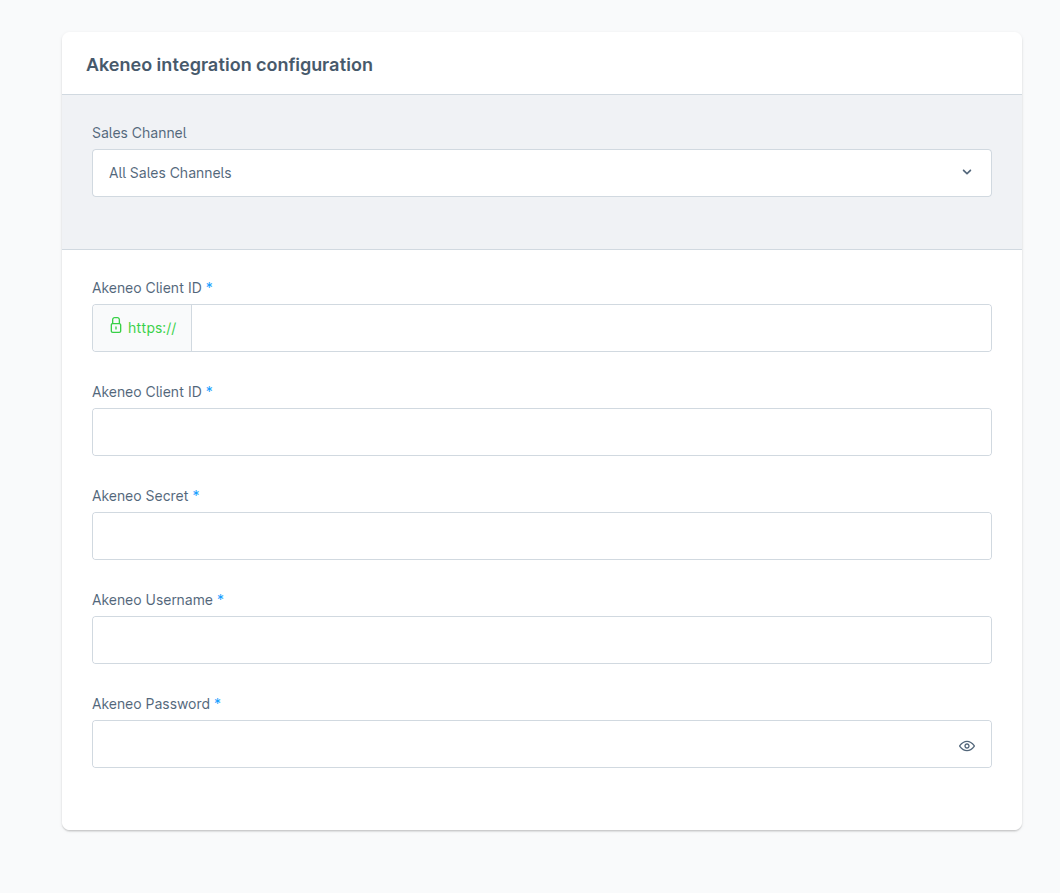
Akeneo API Zugangsdaten
You need to fill in all the data because it is required to make a connection.
That's the basic configuration you need to get started with the Akeneo Shopware integration. Next is to create yaml file with field mapping.
Überwachung von Synchronisationsaufgaben
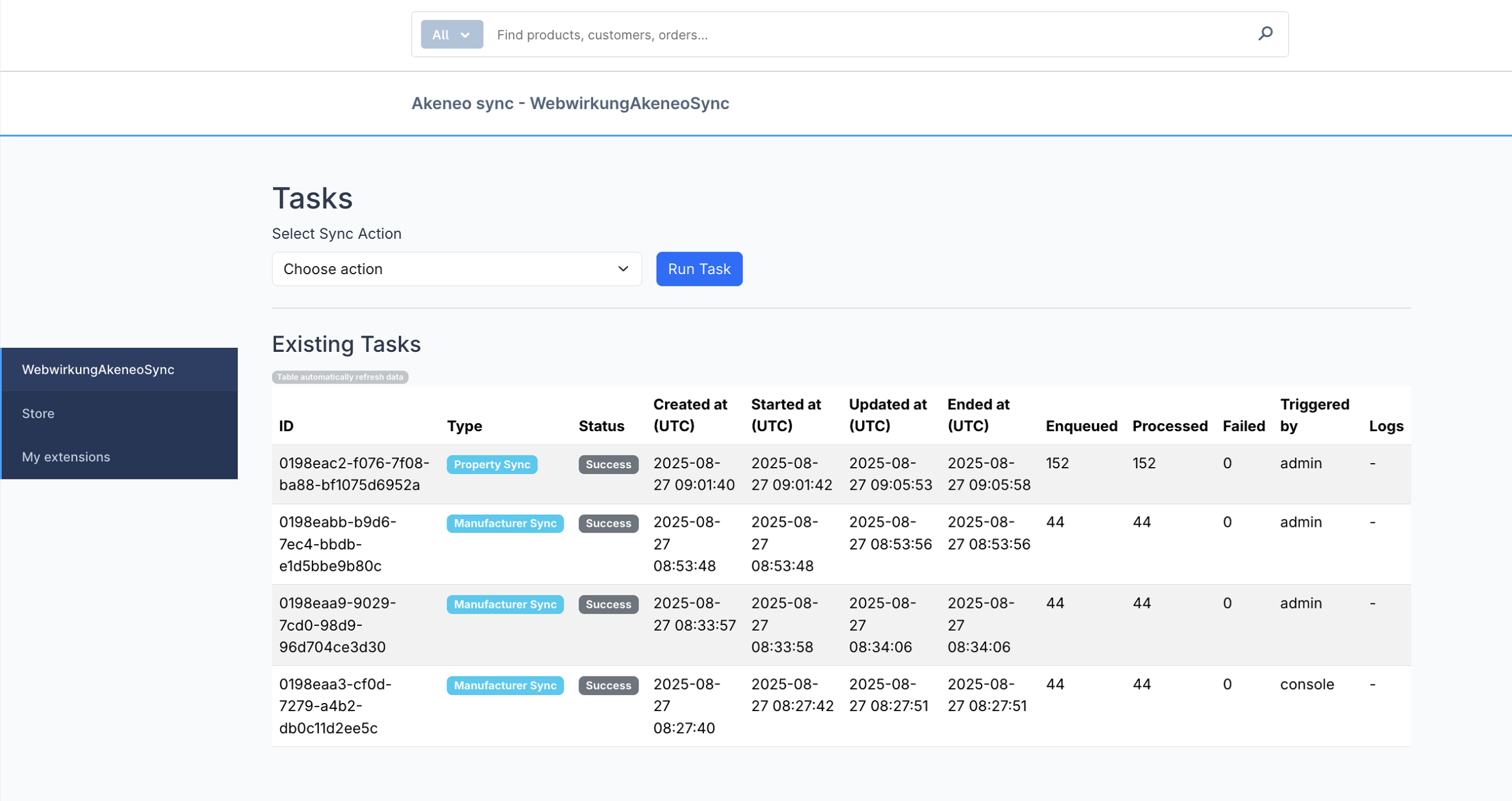
Jeder Status einer Synchronisationsaufgabe wird in der Datenbank (task-Tabelle) gespeichert.
Zusätzlich können Sie Synchronisationsaufgaben im Admin-Panel nachverfolgen und manuell ausführen.
Gehen Sie dazu zu Admin-Panel → Erweiterungen → WebwirkungAkeneoSync.
Zuordnung von Objekten
Die Produkte, Hersteller, Kategorien, Eigenschaftsgruppen und Optionen müssen in einer speziellen YAML-Datei abgebildet werden. Das Beispiel der Datei:
shopware:
  translations:
    en_US: shopware_language_id
    de_DE: shopware_language_id
    fr_FR: shopware_language_id

  currency:
    EUR: shopware_currency_id
    CHF: shopware_currency_id

  salesChannels:
    Storefront: shopware_sales_channel_id

  defaultLanguage:
    de_DE: shopware_language_id

  product:
    taxId:
      type: const
      value: shopware_default_tax_id

    translations:
      type: iteration
      iteration: translations
      fields:
        name: value from akeneo api response np. values.description_product_name
        description: value from akeneo api response np. values.description_plain
      value: data
      find: locale

    productNumber:
      type: simple
      field: value from akeneo api response np. identifier

    cover:
      type: media
      parentKey: mediaId
      field: value from akeneo api response np. values.image_default.0._links.download.href
      folderId: shopware_folder_id

    stock:
      type: simple
      field: value from akeneo api response np. values.stock.0.data
      convert: integer

    price:
      type: with_fields
      iteration: currency
      parentKey: false
      fields:
        currencyId:
          type: key
        net:
          type: value
          field: values.price_buy_net.0.data
          value: amount
          find: currency
          convert: float
        gross:
          type: value
          field: values.price_buy.0.data
          value: amount
          find: currency
          convert: float
        linked:
          type: const
          value: true
    visibilities:
      type: with_fields
      iteration: salesChannels
      parentKey: false
      fields:
        salesChannelId:
          type: key
        visibility:
          type: const
          value: 30
    customFields:
      type: field_key
      fields:
        shopware_custom_field_id:
          type: simple
          field: value from akeneo api response

  manufacturer:
    translations:
      type: simple_iteration
      iteration: translations
      fields:
        name: value from akeneo api response np. labels
    customFields:
      type: field_key
      fields:
        shopware_custom_field_id:
          type: simple
          field: value from akeneo api response

  category:
    translations:
      type: simple_iteration
      iteration: translations
      fields:
        name: value from akeneo api response
    customFields:
      type: field_key
      fields:
        shopware_custom_field_id:
          type: simple
          field: value from akeneo api response
	property:
    translations:
      type: simple_iteration
      iteration: translations
      fields:
        name: labels
    customFields:
      type: field_key
      fields:
        shopware_custom_field_id:
          type: simple
          field: value from akeneo api response

  manufacturer_field: manufacturer
  gallery: []
  galleryFolderId: shopware_folder_id

  customFieldsIds:
    manufacturer: shopware_custom_field_id
    propertyGroup: shopware_custom_field_id
    category: shopware_custom_field_id

shopId: shop ID

akeneo:
  mainCategory: parent category code
Die Datei muss auf unserem Anwendungsserver abgelegt werden.
Neue Attribute (Felder) von Akeneo zu Shopware zuordnen
Jedes neue Attribut, das in Akeneo erstellt wird, muss im Shopware Admin Panel hinzugefügt werden (Admin panel → Extensions → WebwirkungAkeneoSync tab → Properties Tab):
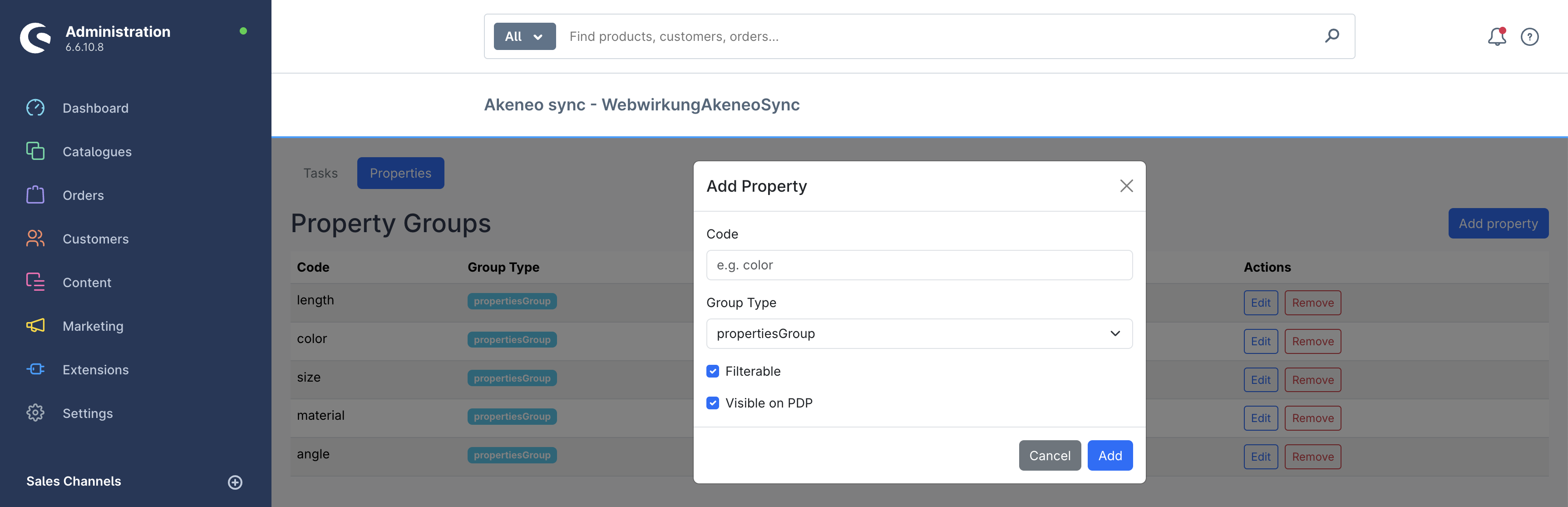
Beim Hinzufügen einer neuen Property für die Synchronisierung erscheint nach dem Klick auf den “Add property”-Button ein Modal, in dem folgende Informationen eingegeben werden können:
- Name
- Group type – wählen Sie eine der drei Optionen:
- propertiesGroup – Akeneo attribute codes, die synchronisiert werden sollen
- simplePropertiesGroup – Akeneo attribute codes für simple products, die synchronisiert werden sollen
- variantPropertiesGroup – Akeneo attribute codes für variant products, die synchronisiert werden sollen
- Visibility settings – legen Sie fest, ob die Property:
- auf der PDP (Product Detail Page) sichtbar sein soll oder
- filterable sein soll.