
General configuration
General
To configure the plugin, go to the Shopware administration and open the Akeneo integration plugin configuration.
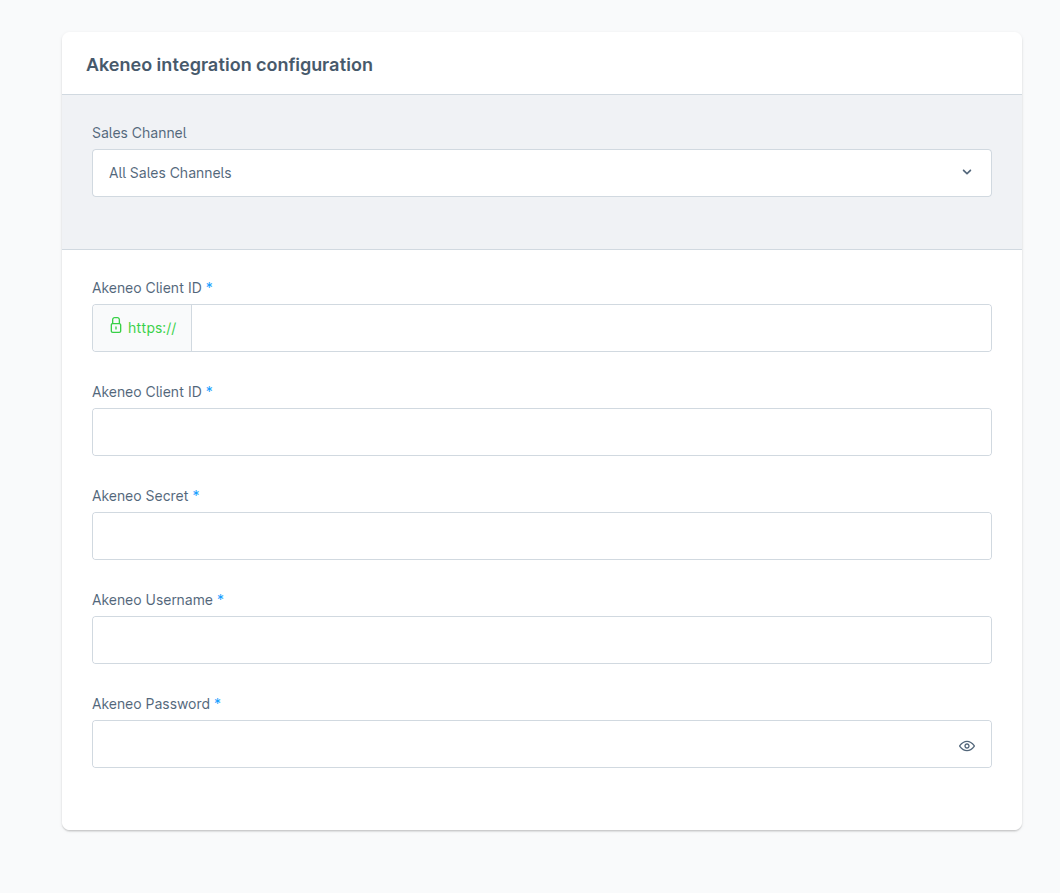
Akeneo API credentials
You need to fill in all the data because it is required to make a connection.
That's the basic configuration you need to get started with the Akeneo Shopware integration. Next is to create yaml file with field mapping.
Monitoring synchronization tasks
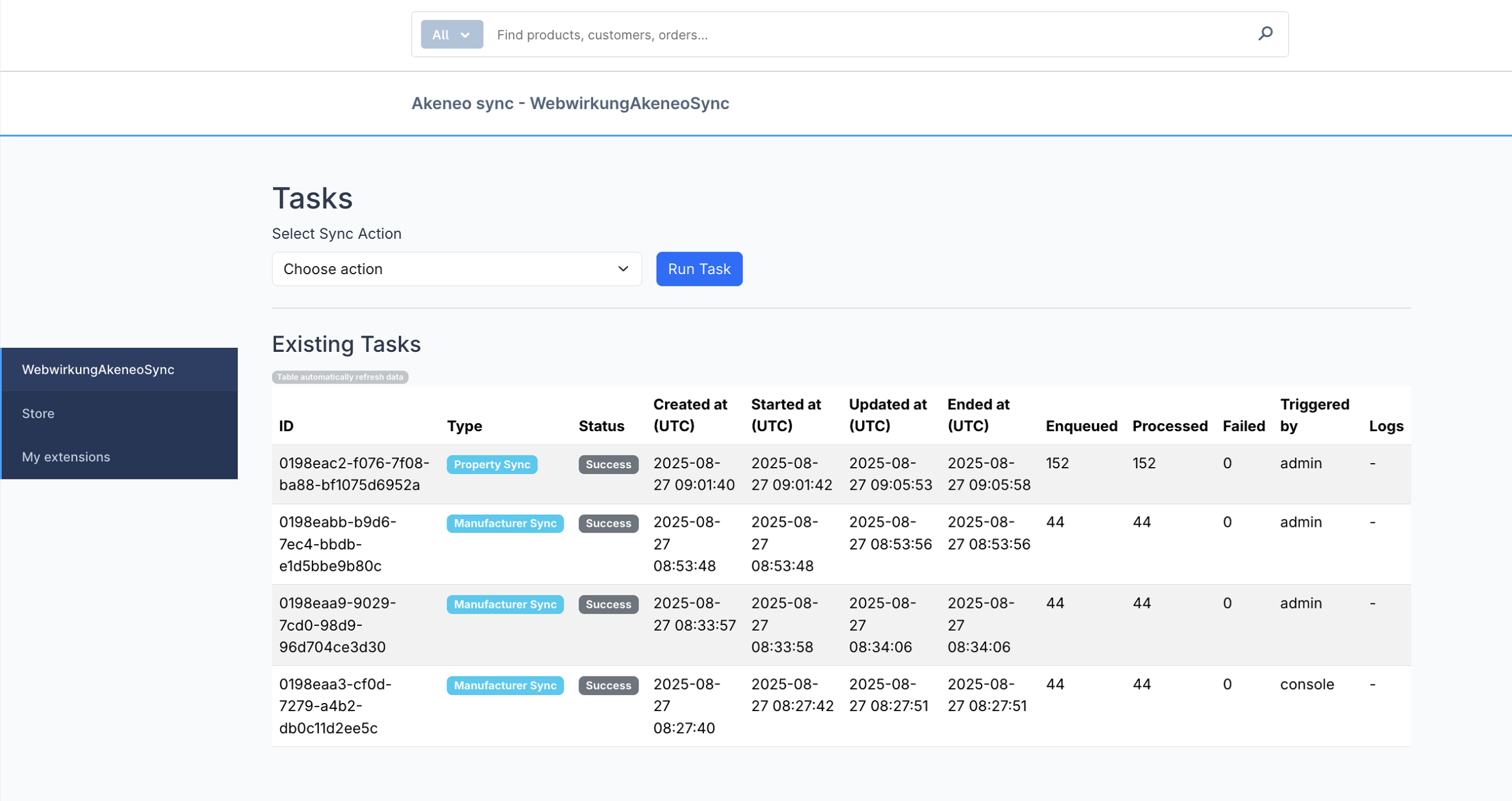
Each synchronization task status is stored in the database (task table).
You can track and manually execute synchronization tasks through the Admin panel.
To do this, go to Admin panel → Extensions → WebwirkungAkeneoSync tab.
Mapping of objects
The products, manufacturers, categories, property groups, and options need to be mapped in a special YAML file. The example of the file:
shopware:
  translations:
    en_US: shopware_language_id
    de_DE: shopware_language_id
    fr_FR: shopware_language_id

  currency:
    EUR: shopware_currency_id
    CHF: shopware_currency_id

  salesChannels:
    Storefront: shopware_sales_channel_id

  defaultLanguage:
    de_DE: shopware_language_id

  product:
    taxId:
      type: const
      value: shopware_default_tax_id

    translations:
      type: iteration
      iteration: translations
      fields:
        name: value from akeneo api response np. values.description_product_name
        description: value from akeneo api response np. values.description_plain
      value: data
      find: locale

    productNumber:
      type: simple
      field: value from akeneo api response np. identifier

    cover:
      type: media
      parentKey: mediaId
      field: value from akeneo api response np. values.image_default.0._links.download.href
      folderId: shopware_folder_id

    stock:
      type: simple
      field: value from akeneo api response np. values.stock.0.data
      convert: integer

    price:
      type: with_fields
      iteration: currency
      parentKey: false
      fields:
        currencyId:
          type: key
        net:
          type: value
          field: values.price_buy_net.0.data
          value: amount
          find: currency
          convert: float
        gross:
          type: value
          field: values.price_buy.0.data
          value: amount
          find: currency
          convert: float
        linked:
          type: const
          value: true
    visibilities:
      type: with_fields
      iteration: salesChannels
      parentKey: false
      fields:
        salesChannelId:
          type: key
        visibility:
          type: const
          value: 30
    customFields:
      type: field_key
      fields:
        shopware_custom_field_id:
          type: simple
          field: value from akeneo api response

  manufacturer:
    translations:
      type: simple_iteration
      iteration: translations
      fields:
        name: value from akeneo api response np. labels
    customFields:
      type: field_key
      fields:
        shopware_custom_field_id:
          type: simple
          field: value from akeneo api response

  category:
    translations:
      type: simple_iteration
      iteration: translations
      fields:
        name: value from akeneo api response
    customFields:
      type: field_key
      fields:
        shopware_custom_field_id:
          type: simple
          field: value from akeneo api response
	property:
    translations:
      type: simple_iteration
      iteration: translations
      fields:
        name: labels
    customFields:
      type: field_key
      fields:
        shopware_custom_field_id:
          type: simple
          field: value from akeneo api response

  manufacturer_field: manufacturer
  gallery: []
  galleryFolderId: shopware_folder_id

  customFieldsIds:
    manufacturer: shopware_custom_field_id
    propertyGroup: shopware_custom_field_id
    category: shopware_custom_field_id

shopId: shop ID

akeneo:
  mainCategory: parent category code
The file has to be placed on our application server.
Mapping new attributes(fields) from Akeneo to Shopware
Every new attribute created in Akeneo has to be added in Shopware Admin Panel (Admin panel → Extensions → WebwirkungAkeneoSync tab → Properties Tab):
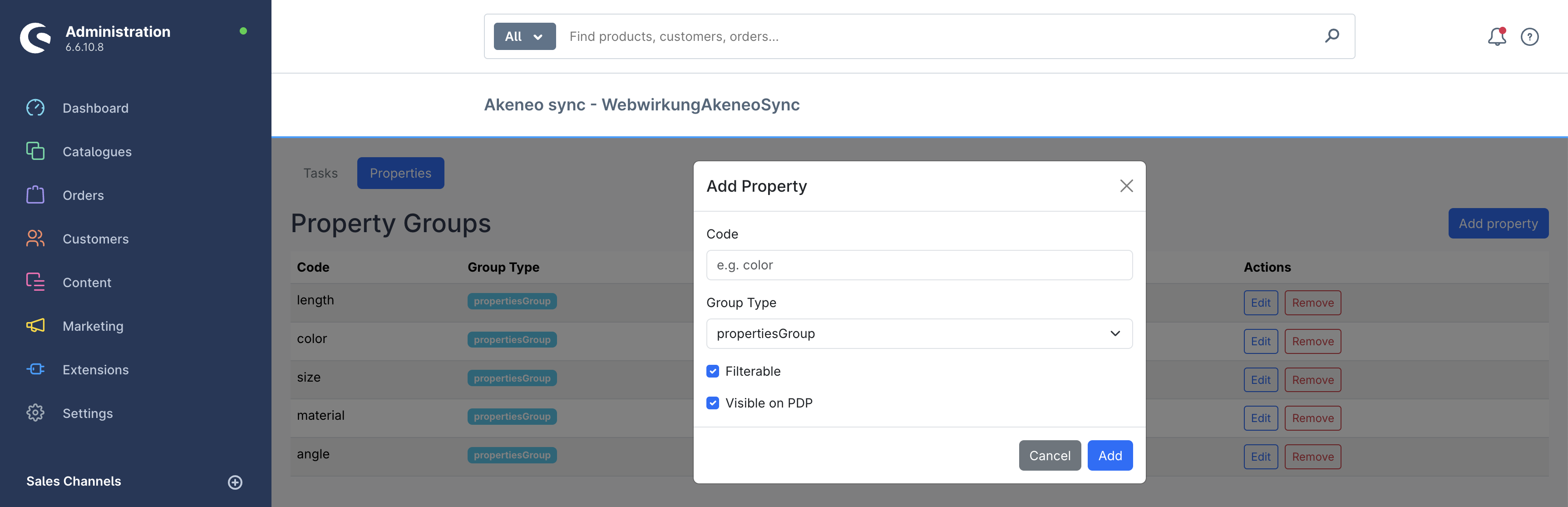
While adding a new property to sync, after clicking the “Add property” button, a modal will appear where you can enter the following information:
- Name
- Group type – choose one of three options:
- propertiesGroup – Akeneo attribute codes to synchronize
- simplePropertiesGroup – Akeneo attribute codes for simple products to synchronize
- variantPropertiesGroup – Akeneo attribute codes for variant products to synchronize
- Visibility settings – specify whether the property should:
- be visible on the PDP (Product Detail Page), or
- be filterable.